 Verinote AI
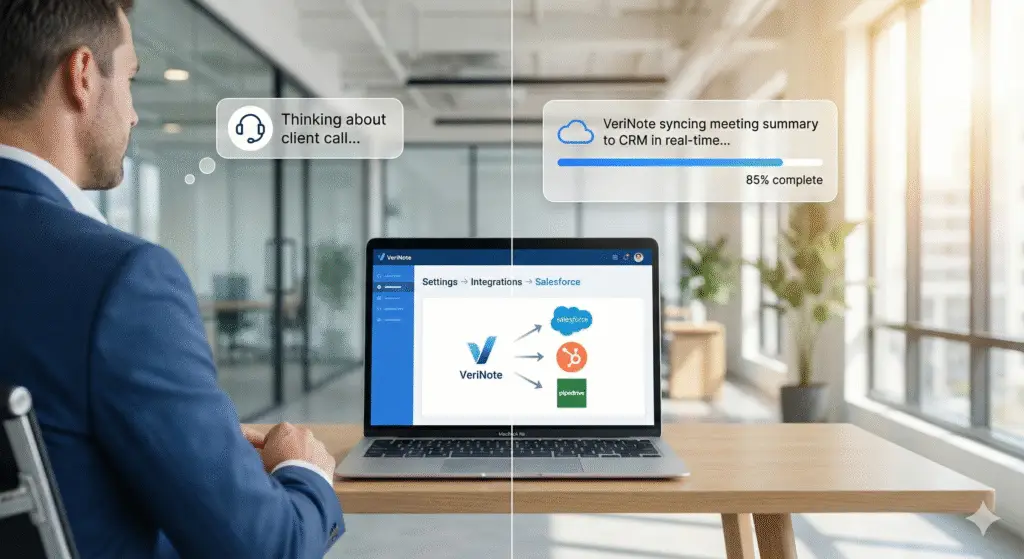
CRM Integration Setup: Connect VeriNote in 5 Minutes
You just signed up for VeriNote. Congrats! Now you’re staring at your dashboard thinking, “Okay… now what?”
Let me tell you exactly what to do next: connect your CRM. Not after you “test things out.” Not “once you see how it works.” Right now. This minute.
Because here’s what happens if you don’t: You’ll finish your first meeting. VeriNote will hand you this beautiful, AI-generated summary. You’ll think “wow, this is amazing!” And then… you’ll copy-paste it into Salesforce. Manually. Like it’s 2015.
You know that defeats the entire point, right?
The whole reason you signed up for an AI note taker was to stop doing exactly that. So let’s fix this before your first meeting even happens.
Good news: this CRM integration setup takes five minutes. I’ve timed it. Multiple times. With advisors who insist they’re “not technical.” Still five minutes.
Before You Start (Deep Breath—This Is Easy)
You need three things:
- Your VeriNote login (you literally just created this)
- Access to your CRM’s admin settings (Salesforce, HubSpot, Pipedrive—whatever you use)
- Five minutes without someone asking you where the Q3 reports are
That’s it. And I know what you’re thinking: “Don’t I need API keys or something?” No. “What about webhooks?” Nope. “Should I loop in IT?” Absolutely not—unless you enjoy waiting three weeks for a ticket response.
This CRM integration setup is plug-and-play. Like connecting AirPods. If you can authorize Spotify, you can do this.
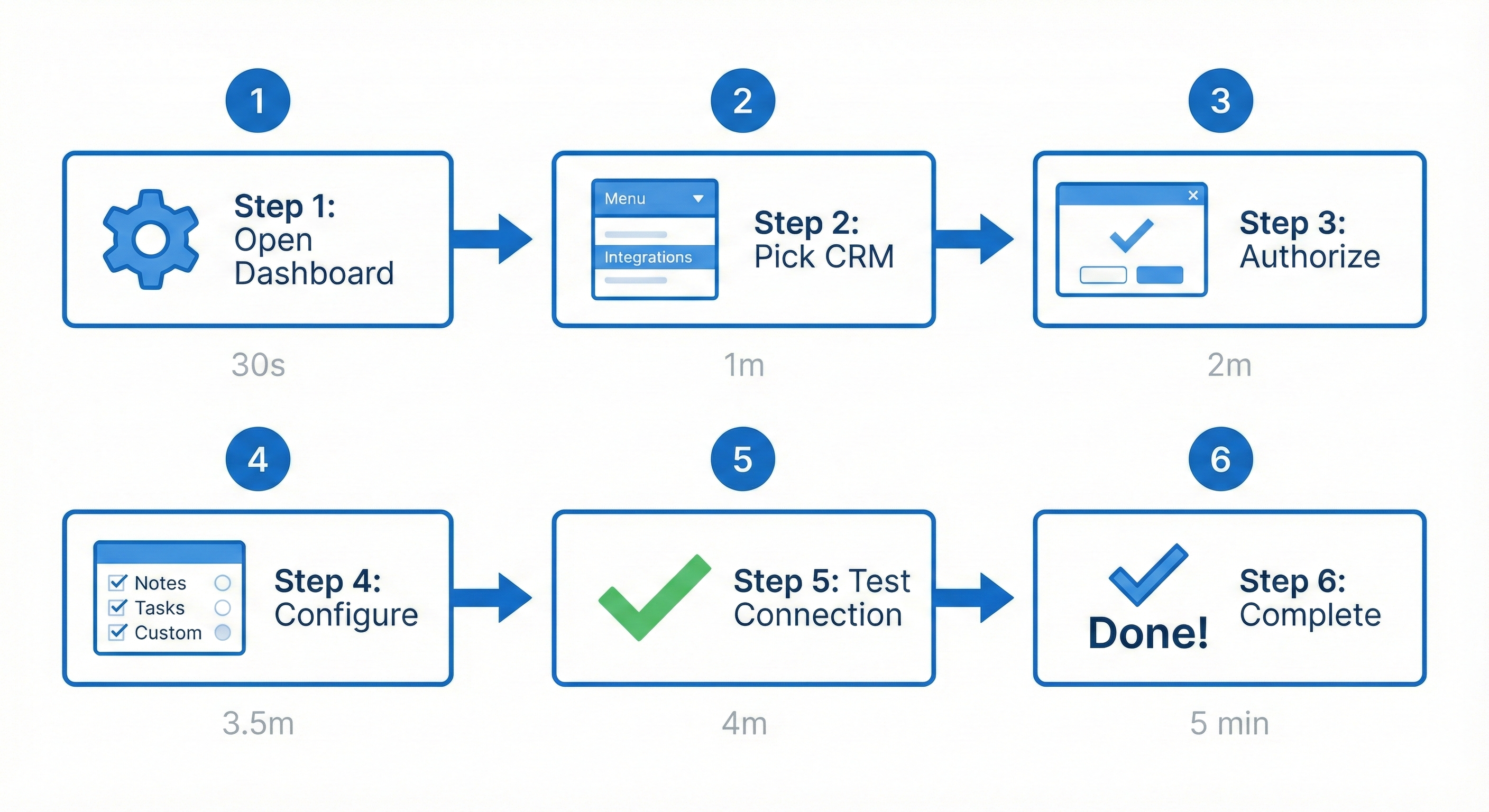
Step 1: Open Your VeriNote Dashboard
Log into VeriNote. You’ll see your main dashboard, which is probably empty right now because you haven’t run any meetings yet. Totally normal.
Top right corner—see that gear icon? Click it.
Settings panel opens. Left sidebar says “Integrations.” Click that too.
Time so far: 30 seconds. (See? I wasn’t lying.)
Your CRM integration setup is about to get easier than you think.
Step 2: Pick Your CRM
You’ll see a bunch of logos. The big three are right up top:
- Salesforce (if you’re at a larger firm and drowning in customizations)
- HubSpot (if you’re growing fast and love orange branding)
- Pipedrive (if you’re solo or small team and want something that just works)
Click yours.
Using something else? Zoho? Monday? That weird one your boss insists on? Scroll down. VeriNote supports 50+ platforms. Yours is probably hiding down there.
Time check: 1 minute. Still with me?
Most people overthink CRM integration setup. It’s actually straightforward.
Step 3: The “Technical” Part (That Isn’t Actually Technical)
Click “Connect [Your CRM Name].”
A popup appears. It asks you to log into your CRM. Do that—same credentials you use every day.
Then your CRM asks: “VeriNote wants to access your account. Allow?”
Click “Allow.” Or “Authorize.” Or whatever button means “yes, please stop making me copy-paste meeting notes.”
That’s it. That’s the entire technical part. No tokens. No keys. No Stack Overflow searches at 11 PM. VeriNote now has permission to push your meeting summaries exactly where they need to go. (Learn more about OAuth integration security at https://oauth.net/)
Time check: 2 minutes. Halfway done. Told you.
Step 4: Tell VeriNote Where Stuff Should Go
This step is technically optional, but do it anyway. Future you will thank present you.
VeriNote asks: “Where do you want meeting summaries to land?”
Most CRMs give you a few options:
- Contact Activity/Notes (the default—summaries show up right in your contact’s timeline, where you’d expect them)
- Custom Object (if your compliance team has Opinions about data structure)
- Tasks (if you want action items to automatically become tasks you can assign)
Not sure? Stick with the default. You can always change this later when you actually understand what your compliance team wants.
VeriNote also asks about action items. Here’s my take: toggle that on. When VeriNote spots “Follow up in two weeks” in your meeting, you want that becoming an actual task. Not another thing you mentally track and forget.
Time check: 3.5 minutes. Almost there.
Step 5: Test It (Because Trust But Verify)
There’s a “Test Connection” button. Click it.
Green checkmark? You’re golden. You’re done. Go reward yourself with coffee.
Red X? Don’t panic. Usually means your CRM session timed out while you were clicking around. Hit “Re-authorize” and try again. That fixes it 90% of the time.
Time check: 4 minutes.
Your CRM integration setup is almost complete. One more step.
Step 6: You’re Actually Done
That’s the whole thing. No step 7. No “advanced configuration.” No settings buried in submenus.
From your next meeting forward, every summary VeriNote generates gets a “Sync to CRM” button. One click. Done. It’s in your system. Your team can see it. Compliance can audit it. You can search for it six months from now when the client says “but you told me…”
Total time: Under 5 minutes. As promised.
What Your Next Meeting Looks Like Now
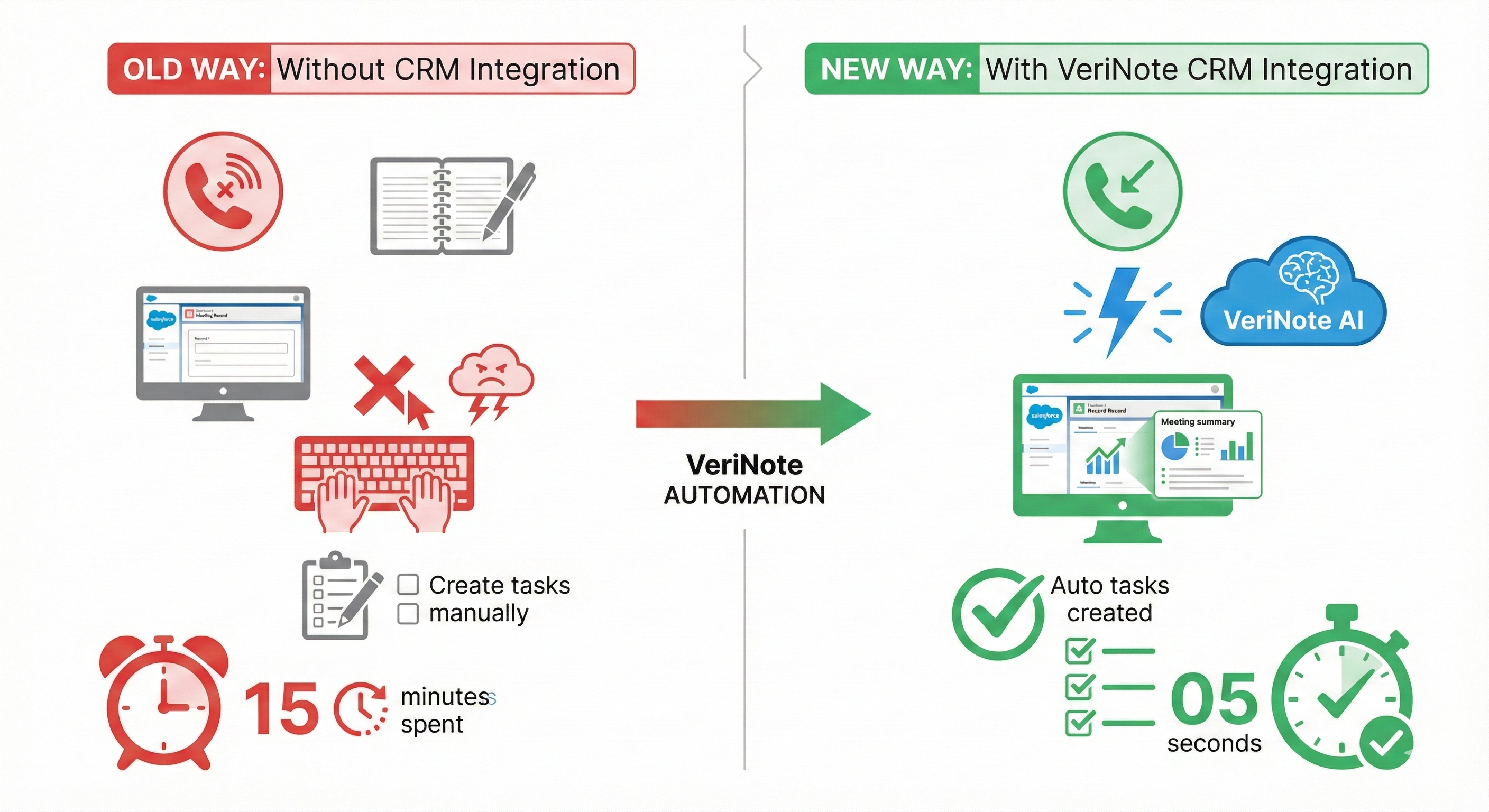
This is what proper CRM integration setup enables—effortless synchronization.
Here’s the new workflow:
- You finish the call. Client hangs up. You’re still thinking about their daughter’s college fund question.
- VeriNote’s already working. 30 seconds later, summary’s ready.
- You skim it. Make sure it didn’t hallucinate something weird. (It won’t, but you’ll check anyway for the first few weeks. That’s normal.)
- Click “Sync to CRM.”
- Done. The summary’s in your client’s contact record. Your teammates can see it immediately—no “Hey what happened on that call?” Slack message required. It’s just there.
Remember your old process? Finish call, open notebook, type everything into CRM, manually create follow-up tasks, hope you didn’t miss anything important?
Yeah. You don’t do that anymore.
CRM Integration Setup Troubleshooting: When Things Go Sideways
“I don’t see my CRM in the list”
Check the search bar in the Integrations panel. If it’s truly not there—which is rare—VeriNote probably doesn’t support it yet. But they cover 50+ platforms, so unless you’re using something homegrown, it’s there.
“Authorization keeps failing”
Your CRM has two-factor authentication, doesn’t it? That’s fine—good, even—but you need to complete the 2FA challenge in the popup window. Sometimes your browser blocks the popup. Check your popup blocker settings. Usually shows up in the address bar. For browser-specific popup blocker help, check your browser’s help documentation.
“I authorized everything but nothing’s showing up in my CRM”
Because you haven’t synced a meeting yet. The connection’s there. VeriNote’s waiting. But it won’t push anything until you actually finish a meeting, generate a summary, and hit “Sync.” That’s when the magic starts.
“My IT department says they need to approve this”
Ah, enterprise Salesforce. Yeah, some IT teams want to review third-party integrations. Fair enough. VeriNote uses standard OAuth security practices as outlined by OWASP guidelines. VeriNote has a one-page security doc you can forward them. It usually gets approved same-day because VeriNote uses standard OAuth—nothing proprietary or weird. But if your IT team moves slowly, start that process now. Don’t wait.
One Last Thing
The beauty of VeriNote’s CRM integration setup is how fast it is. Seriously fast.
Think about Monday morning. Your first client meeting of the week. Previously, that meant:
Finish call. Open notes. Retype everything into CRM. Create tasks manually. Hope you didn’t miss the part where they mentioned their daughter’s wedding.
Now? Finish call. Click “Sync.” Make more coffee.
That’s the difference five minutes of CRM integration setup makes. Not tomorrow’s five minutes. Today’s five minutes.
So go do it. Log into VeriNote. Click Settings → Integrations. Pick your CRM. Authorize it.
You’ll be done before your coffee gets cold.